Sunday, 19 February 2017

Liferay 7

Install liferay 7 in Eclipse Luna

Download liferay plugin update site( Liferay IDE 3.0.1-ga2 Archieved Update-site) from the below link
Open Eclipse Go to HelpàInstall New Software


Upload the liferay updated site in Archieve and enter Name as Liferay .
Click ok and continue the liferay installation .Select  the check box and finish it.
After liferay installation You can configure liferay server.
Goto àPreferences à Server àRuntime Environments àchoose Liferay 7.x  and  click next


After Browse…  click finish.
Start the server
Once server starts it will open URL as localhost:8080 in browser with default configurations.
If you want to change the DB change here (or) finish with default configuration and DB as hypersonic.
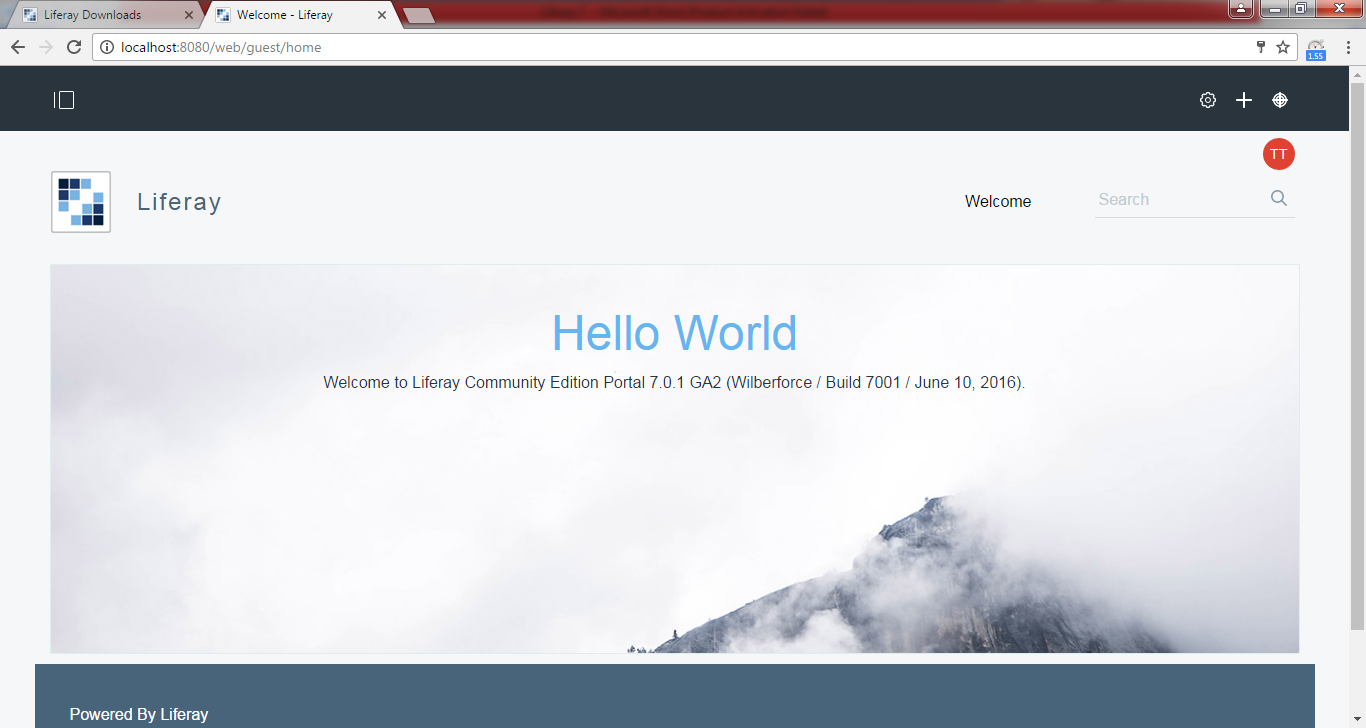
If everything goes well you can see the below screen.


Please upgrade to at least MySQL 5.6.4. The portal no longer supports older versions of MySQL.
After configuring mysql as DB you may get the above error in console if my sql version is below 5.6

So please try to upgrade the sql  version and try.

Friday, 17 February 2017

Liferay 7

Steps for  liferay 7 through command prompt in windows
1)Install  java 8  in your system
2) Path setting should be proper
For Example:
JAVA_HOME - C:\Program Files\Java\jdk1.8.0_101
JRE_HOME   - C:\Program Files\Java\jdk1.8.0_101\jre
Based on your installation you can provide the path but JRE_HOME should be inside jdk’s (JRE as mentioned above)
3)Download liferay 7 from the below path
Choose your version and download here
Extract the downloaded zip file
Open the command prompt   and run the below commands
If you are in C drive move to required path for Example
C:\Users\user>D:
D:\>cd D:\softwares\Liferay NEW\liferay-ce-portal-7.0-ga2\tomcat-8.0.32\bin
After entering into bin just start the server with startup.bat  command once if server starts It will come in browser as localhost:8080 with basic configurations.
Enter name and  email id or continue with defaults as test@liferay.com.
Choose password and reminder question and finish it.
If page looks like the below diagram make sure your JRE path once again and try.


If your path is proper then you can see the page as


Tuesday, 16 August 2016

liferay 6.2 features

 Responsive Design

 Improved in web content management

 Dynamic Data Structures(Supports only few data types and limited form of data validation)

 Multiple language support in structure field labels(Structures in WCM)

 In Web Content Display we can create folder and we can move our webcontent  display to that particular folders and also if we mouse over on approved it will display the name of the creator along with time(Ex: 4 minutes ago)

 Recycle bin

 Application Display Templates

 Notification

 My profile and dashboard is showing once if we click  on firstname+lastname

 Preview option os there to check for  mobile,tablet,desktop and with custom pixel

 Edit(Link) to edit some customizations

 Work flow configuration(as default and single  approver for few portlets(6)

Thursday, 11 August 2016

liferay indexer hook

post processor indexer HookIndexer hook implements a post processing system on top of the existing indexer.

For example go to Users and Organizations and search based on type.

You wont get the result based on type.

To achieve this just follow the below steps.

Step 1 :

Create a liferay project and choose plugin type as hook and finish.

Step 2 :

Modify in liferay-hook.xml

<?xml version="1.0"?>

<!DOCTYPE hook PUBLIC "-//Liferay//DTD Hook 6.1.0//EN" "http://www.liferay.com/dtd/liferay-hook_6_1_0.dtd">

<hook>

<indexer-post-processor>

<indexer-class-name>com.liferay.portal.model.Organization</indexer-class-name>

<indexer-post-processor-impl>com.javaeasyforu.MyCustomPostIndexer</indexer-post-processor-impl>

</indexer-post-processor>

</hook>

Step 3 :

create a package and java class

docroot/WEB-INF/src  ---->create a class as MyCustomPostIndexer

package com.javaeasyforu;

import com.liferay.portal.kernel.search.BaseIndexerPostProcessor;

import com.liferay.portal.kernel.search.Document;

import com.liferay.portal.kernel.search.Field;

import com.liferay.portal.model.Organization;

public class MyCustomPostIndexer extends BaseIndexerPostProcessor 

{

public void postProcessDocument(Document document, Object object)throws Exception {

  Organization orgEntity = (Organization) object;

  String indexerOrgTitle = null;

  try 

  {

    indexerOrgTitle = orgEntity.getType();

  }

  catch (Exception e) 

  {

    e.printStackTrace();

  }

  if (indexerOrgTitle.length() > 0)

  {

    document.addText(Field.TITLE, indexerOrgTitle);

  }

 }

}

Step 4 Right click on project and deploy

Now go to control panel and click on Users and Organizations

Step 5 :

Search for Type and see the result

Note : It will effect only for new and update records but not for existing records. So edit for some organization and check the result.


Key Point :

Eclipse is not opening properly

# A fatal error has been detected by the Java Runtime Environment 

#

# SIGSEGV (0xb) at pc=0x00007f8e88aaa2a1, pid=7607, tid=140252668163840

Solution: After extracting eclipse you have file called config.ini inside configuration folder. Go there and add the below line at the end

org.eclipse.swt.browser.DefaultType=mozilla

Tuesday, 9 August 2016

difference between hook and ext

Hook                                                          EXT

Hot Deployable                                                    Not Hot Deployable
No need to Restart the server                              Need to restart the server
Maintenance is Easy                                           Maintenance is difficult
Not overriding code directly                                It will replace the code directly
Undoing is easy                                                   Undoing is difficult

Note : We can deploy only one ext plugin per Liferay installation.

Key Point : To avoid multiple submit in form submission when it got refresh give the below line in  liferay-portlet.xml

<action-url-redirect>true</action-url-redirect>


Liferay Custom Icons

In Liferay Search Container if you want to call your own image you can define as


<liferay-ui:search-container-column-text name="Cancel">
          <liferay-ui:icon image="my-custom-icon"  src="/PortletName/images/cancel.png" />

</liferay-ui:search-container-column-text>

copy your image in images folder and provide the path.

Key Point : If you want to reuse your custom portlet more than one time please give the below line in liferay-portlet.xml 

<instanceable>true</instanceable>

Out of the box Portlets in Liferay

Out of the box portlets with plugin Ids


Plugin ID      Out of the box portets
   
2  Account Settings
3  Search
9 Admin
10 Address Book
11 Portal Directory
15 Web Content
16 Currency Converter
19 Message Boards
20 Documents and Media
23 Dictionary
25 Polls
26 Translator
27 Unit Converter
28 Bookmarks
29 My Sites
30 Network Utilities
31 Media Gallery
33 Blogs
34 Shopping
36 Wiki
39 RSS
48 IFrame
49 Site Redirector
54 Wiki Display
56 Web Content Display
58 Sign In
59 Polls Display
61 Loan Calculator
62 Web Content List
64 Recent Downloads
66 Web Proxy
67 Amazon Rankings
70 Password Generator
71 Navigation
73 Breadcrumb
77 Web Content Search
82 Language
83 Alerts
84 Announcements
85 Site Map
86 Portlet Configuration
88 Manage Pages
90 Portal
97 Quick Note
98 Software Catalog
99 Tags
100 Invitation
101 Asset Publisher
102 XSL Content
104 Update Manager
107 Page Comments
108 Page Ratings
110 Documents and Media Display
111 Plugin Installer
113 Portlet CSS
114 Recent Bloggers
115 Blogs Aggregator
116 Activities
118 Nested Portlets
121 Requests
122 Categories Navigation
124 Social
125 Users and Organizations
127 User Groups
128 Roles
129 Password Policies
130 Portal Settings
131 Monitoring
132 Plugins Configuration
133 Portlet Sharing
134 Sites
135 Portal Instances
136 Plugins Installation
137 Server Administration
139 Custom Fields
140 My Pages
141 Tags Navigation
142 Flags
143 Page Flags
144 Ratings
145 Dockbar
146 Page Templates
147 Categories
148 Tag Cloud
149 Site Templates
150 Workflow Tasks
151 Workflow
152 Workflow Configuration
153 My Workflow Tasks
154 Wiki
156 Site Pages
157 Submissions
158 My Submissions
161 Blogs
162 Message Boards
164 Fast Sign In
165 Site Settings
166 Dynamic Data Mapping
167 Dynamic Data Lists
169 Dynamic Data List Display
173 Recent Content
174 Site Memberships
175 Related Assets
176 License Manager
178 Mobile Device Rules
179 Social Activity
180 User Statistics
181 Group Statistics
182 Recycle Bin
183 Application Display Templates
184 Sites Directory
186 Friends Directory
187 Site Members Directory
188 My Sites Directory
190 Control Panel Home